Introducing Snapzy 2.0: Liquid Glass Architecture, Multi-Clip Video Editing, and Camera Overlays
Introducing Snapzy 2.0: Liquid Glass Architecture, Multi-Clip Video Editing, and Camera Overlays
When we started building Snapzy, the goal was simple: make taking screenshots and quick recordings on macOS fast, private, and pleasant. No account walls, no telemetry, no $30 subscriptions for basic utilities.
Over the past months, Snapzy grew from a lightweight capture tool into an everyday companion for developers, designers, and remote teams. But as we added features like auto-focus zoom, smart window detection, and multitrack audio, the old UI patterns started showing their limits. The video timeline was a single flat strip. Trimming was destructive. Translucent panels washed out over bright desktop wallpapers.
Today, we're releasing Snapzy 2.0. It's our largest update to date, featuring:
- Liquid Glass Design System: Native Apple Liquid Glass on macOS 26+ and an optical 4-layer composite model for macOS 13–15.
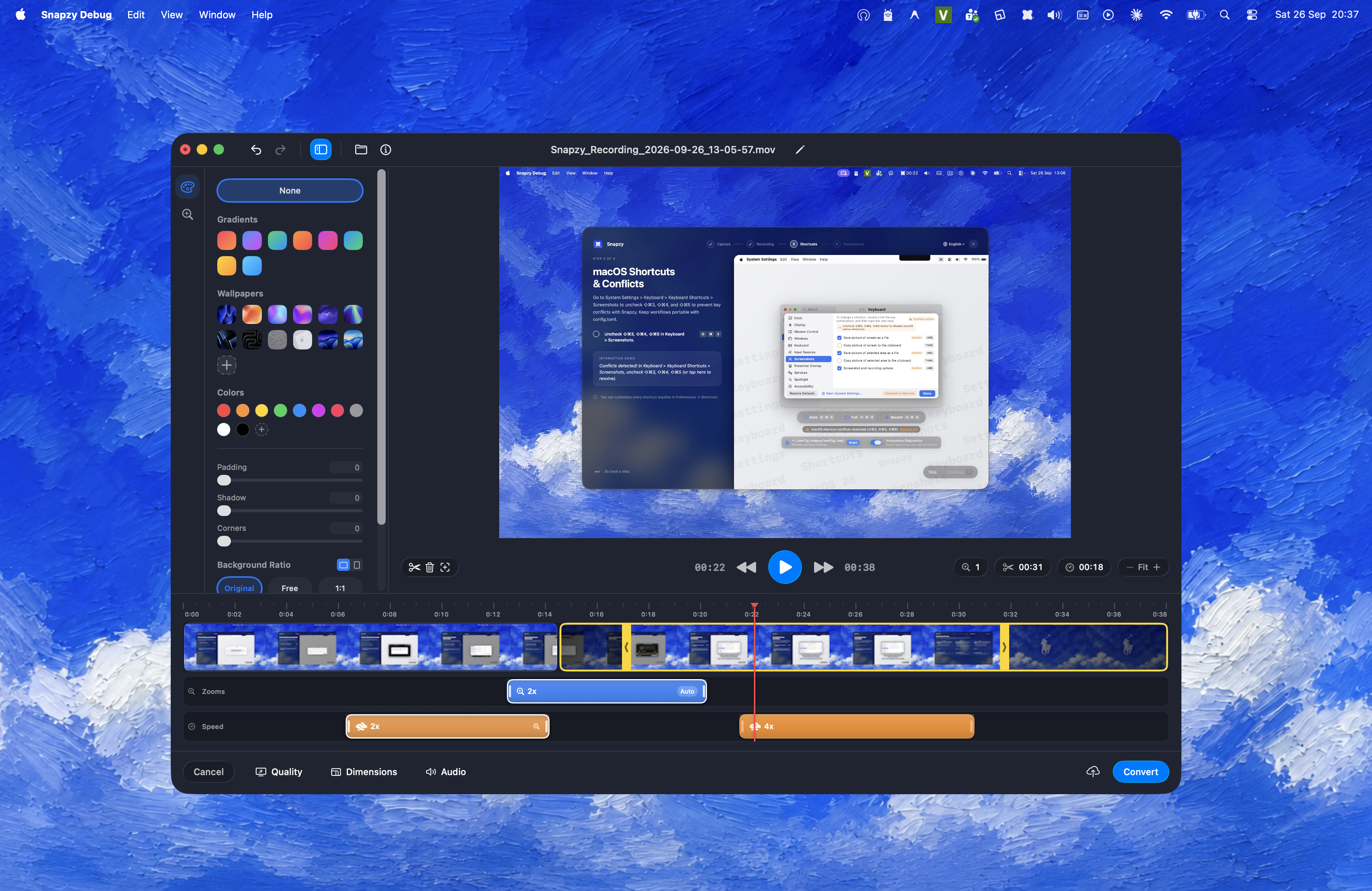
- Rebuilt Video Editor: Multi-clip timeline with splitting, reordering, ripple editing, and external clip insertion.
- Non-Destructive Session Persistence: Reopen exported videos weeks later with your cuts, zooms, and backgrounds intact.
- Webcam & Camera Overlay: Floating, resizable picture-in-picture with custom shapes and horizontal mirroring.
- Delayed Capture (Timer Countdown): Capture dropdowns, tooltips, and fleeting states without finger gymnastics.
- Full Display Recording in One Click: Press Enter or click anywhere to record your whole monitor instantly.
Here's an in-depth look at what's new under the hood.
1. Liquid Glass: Modern Translucency Without Desktop Washout
Translucency on macOS has always been tricky. Default AppKit and SwiftUI materials like .ultraThinMaterial sample whatever is directly behind the window. Place a translucent floating panel over a dark desktop, and it looks decent. Move it over a bright white browser tab or an outdoor wallpaper, and the contrast collapses. Typography disappears, borders look muddy, and accessibility suffers.
In Snapzy 2.0, we developed a dual-path design architecture centered around optical layering.
┌────────────────────────────────────────────────────────┐
│ 1. Specular Hairline Border (0.5 pt)                  │
│    • Diagonal linear gradient reacting to light       │
├────────────────────────────────────────────────────────┤
│ 2. Interactive Foreground Content                      │
│    • Typography, SF Symbols, custom keycap badges      │
├────────────────────────────────────────────────────────┤
│ 3. Optical Refraction Layer                            │
│    • macOS 26+: Native .glassEffect()                 │
│    • macOS 13–15: NSVisualEffectView / gradient sheen  │
├────────────────────────────────────────────────────────┤
│ 4. Adaptive Substrate Fill                             │
│    • Guaranteed contrast ratio (> 4.5:1)               │
└────────────────────────────────────────────────────────┘
Native Liquid Glass on macOS 26+
On macOS 26 and later, Snapzy taps Apple's official Liquid Glass APIs (.glassEffect(.regular.interactive()), GlassEffectContainer, and .glassEffectID()). Adjacent controls merge optically, light refracts through glass edges in real time, and the material morphs as you hover and click.
The 4-Layer Optical Composite for macOS 13–15
We refused to leave users on macOS Ventura, Sonoma, and Sequoia with flat, dull rectangles. For macOS 13–15, Snapzy renders a custom 4-layer optical composite:
- Adaptive Substrate: An appearance-resolved base fill (darkened under Dark Aqua, softened under Light Aqua) that guarantees WCAG AAA contrast (> 4.5:1) regardless of your wallpaper.
- Refraction Pass: An active
NSVisualEffectViewHUD backdrop with high-performance gradient sheens on nested controls. - Body Tint & Wash: Dynamic ink tokens that adjust button fills and badges without tint bleeding.
- Specular Hairline Border: An inset
0.5ptborder featuring a subtle diagonal gradient (white 16% → white 4%) that mimics physical light striking the edge of cut glass.
You'll see this new design language everywhere: the Annotate toolbar, the Quick Properties bar, the Floating History panel, and the Scrolling Capture HUD.
If you like inspecting UI internals, check out the Snapzy Design Studio in the Debug menu to preview materials and tune glass parameters live against different wallpaper presets.
2. A Real Video Editor: Multi-Clip Timeline & Non-Destructive Editing
In earlier versions, video editing in Snapzy was primarily a trim bar. You dragged two handles, picked an aspect ratio, and saved.
Snapzy 2.0 turns the video editor into a full-fledged workstation designed specifically for product demos, bug repros, and tutorial clips.
Multi-Clip Sequence Timeline
The continuous single-track filmstrip is replaced by a structured clip sequence:
- Split Clips Anywhere: Press
Sor click the scissors tool to slice a recording right at the playhead. - Reorder with Ripple Snap: Drag any clip block along the timeline. Gaps close automatically, so you never end up with unexpected black frames during export.
- Non-Destructive Trimming: Each clip maintains its full source duration. Dragging the yellow chevron handles trims edge footage out of the active sequence while leaving the dimmed material visible. Need that 2-second setup back? Just drag the handle back out.
- Insert External Clips: Tap the
+icon on the timeline to insert supplementary MP4 or MOV files directly into your recording sequence. - Ripple Delete: Select unwanted sections and press
⌫(Delete). The timeline automatically ripples left.
Independent Structural Coordinates
One architectural headache in timeline editors is what happens to effects when clips are cut or shifted. If you author a zoom block at second 4.0, then trim 2 seconds from the start of the video, does your zoom move?
In Snapzy 2.0, we decoupled the timeline into three distinct coordinate systems:
- Structural Timeline Time: The stable ruler axis where clips, playhead, and effects live.
- Playable Sequence Time: Compacted active footage (trimmed-out edges removed) used for playback and export composition.
- Output Time: The sequence with variable speed segments applied.
Because Zoom segments and Speed segments are authored in structural time, your zoom frames and timelapse blocks remain locked to the moment you intended—even when you split, trim, or reorder the underlying clips.
Reopen & Continue Editing (Session Persistence)
This was one of our most requested features. In most screen recorders, once you save an edited video to disk, that file is baked. If you realize you cut a sentence too short or chose the wrong background color, your only option is to start over or re-record.
Snapzy 2.0 introduces non-destructive session packages:
- Whenever you save a video in place, Snapzy writes an edit recipe package to
Application Support/Snapzy/VideoEditorSessions/and preserves a private snapshot of the pristine raw capture. - When you reopen that video from Quick Access, History, or by double-clicking the file, Snapzy detects the session sidecar.
- Your entire project is restored: cut points, zoom blocks, follow-mouse keyframes, background padding, and custom speeds.
- Subsequent saves re-render from the pristine original, preserving full image fidelity with zero multi-generation compression artifacts.
Consolidated Workspace & Smooth Timeline Navigation
We eliminated the cluttered right sidebar. All layout and camera controls now live in a streamlined Left Rail:
- Background & Canvas (
paintpalette): Gradients, desktop wallpaper blurs, padding, rounded corners, and drop shadows. - Zoom & Auto-Focus (
plus.magnifyingglass): Manual zoom coordinates, cubic ease-in-out transitions, and follow-mouse parameters. - Interactive Timeline Navigation: Pinch to zoom in on the timeline, scroll horizontally with 1:1 trackpad precision, or use the zoom cluster (
− / % / +) to jump between detailed frame ticks and full-fit overview.
3. Draggable Camera Overlay (Picture-in-Picture)
Recording product demos and code walkthroughs is vastly more engaging when your audience can see your reactions.
Snapzy 2.0 adds a floating camera overlay directly into the screen recording pipeline:
- Custom Shapes: Switch between Circle, Rounded Rectangle, and Square.
- Size Presets: Quickly toggle between small, medium, and large viewport sizes.
- Horizontal Mirroring: Toggle webcam mirror mode with a single click.
- Frosted Glass Disconnect State: If your webcam is unplugged or sleeping, the overlay smoothly transitions into a frosted Liquid Glass placeholder rather than displaying a black box.
- Draggable Anywhere: Reposition the camera bubble freely across your recording frame; Snapzy remembers your preferred position and shape for future sessions.
4. Smarter Capture Workflows
Beyond big architectural milestones, Snapzy 2.0 refines the everyday capture details that save you time:
Delayed Capture (Timer Countdown)
Capturing open dropdowns, hovering tooltips, or right-click context menus used to require awkward keyboard gymnastics while keeping your mouse perfectly stationary.
With Delayed Capture, you can set a countdown (e.g., 3s or 5s). Trigger the hotkey, navigate your interface, pop open the menu, and let Snapzy freeze the screen at the right moment.
One-Click Display Recording
When you trigger screen recording, you don't always want to draw a bounding box. In 2.0, simply click anywhere or hit Enter, and Snapzy instantly locks onto the full display and starts recording.
Maximum Recording Resolution for Browser Compatibility
Modern Retina screens can generate massive 5K and 6K video files. Some browsers and messaging clients (like Slack or Discord) struggle to decode baseline H.264 profiles at non-standard high resolutions. Snapzy now includes an optional maximum recording resolution limit, ensuring your exported videos play smoothly everywhere without manual re-encoding.
Refined Annotate & Preferences UI
The Annotate window and Preferences pane have been completely overhauled:
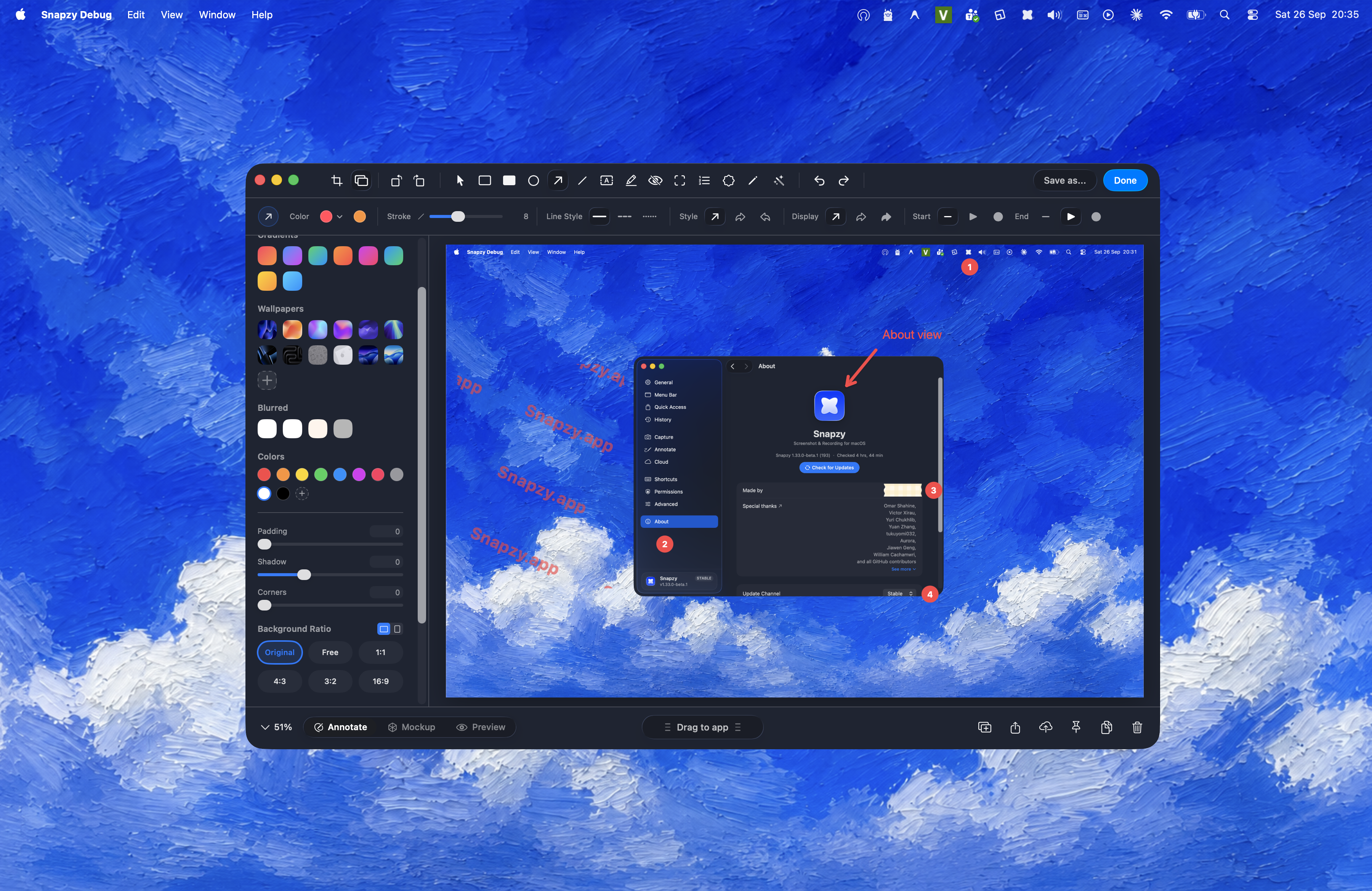
- Grouped, continuous Liquid Glass keycap badges for keyboard shortcuts.
- Standardized section headers and contextual action menus.
- Real-time reactive theme switching between Light and Dark mode.
Getting Started with Snapzy 2.0
Snapzy 2.0 is available today. As always, Snapzy is completely free and open-source. No subscription, no watermarks, no telemetry, and all processing stays 100% on your Mac.
How to Update
- In-App Updater: If you already have Snapzy installed, go to Snapzy Menu → Check for Updates… to download v2.0.0 via Sparkle.
- Homebrew:
brew update brew upgrade --cask snapzy - Direct Download: Grab the signed and notarized DMG directly from our GitHub Releases.
What's Next?
Snapzy 2.0 establishes the architectural foundation for our next roadmap milestones: plugin extensions, smart subtitle generation, and local AI-powered object masking.
If you enjoy using Snapzy, consider starring the repository on GitHub or supporting ongoing development. Your feedback and bug reports make each release possible!
Support the project
Snapzy is free and open source. If you find it useful, consider sponsoring to help keep development alive and accessible to everyone.