Fix Shortcut Conflicts: When macOS and Snapzy Fight Over ⌘⇧3
Fix Shortcut Conflicts: When macOS and Snapzy "Fight"
You just installed Snapzy. Excited, you press ⌘⇧3 to try a screenshot. And then... nothing happens. Or worse, you get two images at once — one from macOS, one from Snapzy.
Welcome to shortcut conflict, the most common issue new users run into.
Don't worry. It's not a Snapzy bug, and it's not a macOS bug. Both systems simply registered the same key combination. In this post, I'll show you how to fix it permanently in about 60 seconds.
Why This Happens
macOS ships with three default screenshot shortcuts baked into the system:
- ⇧⌘3 — Save picture of the entire screen
- ⇧⌘4 — Save picture of a selected area
- ⇧⌘5 — Open screenshot and recording toolbar
Snapzy uses those exact combinations by default. The reason? We want Snapzy to fully replace the built-in macOS screenshot tool, not pile on new shortcuts you have to memorize.
But macOS doesn't automatically hand off its shortcuts to third-party apps. When you press ⇧⌘3, the operating system grabs the event first and decides to handle it instead of passing it to Snapzy.
The result:
- Case 1: macOS captures the screen, Snapzy doesn't respond
- Case 2: Both fire at once, you end up with duplicate files
- Case 3: Sometimes Snapzy wins, sometimes macOS wins — unreliable
The Fix: Disable macOS Default Screenshot Shortcuts
The cleanest solution is to turn off the macOS screenshot shortcuts so Snapzy owns those keys completely.
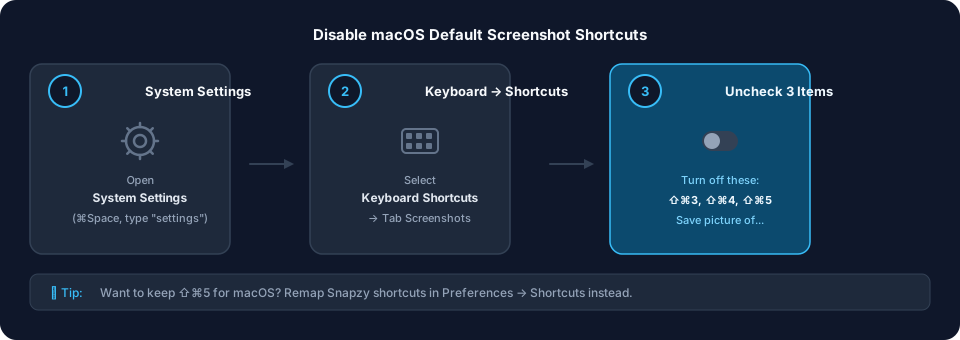
Step 1: Open System Settings
Press ⌘Space, type "System Settings," and hit Enter.
Or click the Apple logo in the top-left corner → System Settings.
Step 2: Navigate to Keyboard Shortcuts
Use the search bar on the left and type "keyboard shortcuts." Or navigate manually:
Keyboard → Keyboard Shortcuts
Step 3: Uncheck Three Screenshot Items
In the left column, select Screenshots (under the App Shortcuts or System group).
You'll see a list of shortcuts. Find these three and uncheck them:
- Save picture of screen as a file —
⇧⌘3 - Save picture of selected area as a file —
⇧⌘4 - Screenshot and recording options —
⇧⌘5
Note: Don't disable Copy picture of screen to the clipboard (⌃⇧⌘3) or Copy picture of selected area to the clipboard (⌃⇧⌘4) unless you know what you're doing. Those use the extra ⌃ (Control) key, so they don't conflict with Snapzy.
Step 4: Test It
Go back to your desktop and press ⇧⌘3. Snapzy's frozen area overlay should appear instantly. No more macOS thumbnail in the corner. No more mystery files on your desktop.
What If You Want to Keep the macOS Shortcuts?
Some users prefer keeping the native macOS shortcuts for emergencies, or just out of habit. That's fine.
You have two options:
Option A: Remap Snapzy's Shortcuts
Open Snapzy → Preferences → Shortcuts and assign different combinations:
- Area Capture:
⌃⌥⌘3instead of⇧⌘3 - Window Capture:
⌃⌥⌘4instead of⇧⌘4 - Screen Recording:
⌃⌥⌘5instead of⇧⌘5
Snapzy has built-in conflict detection. If you assign a key already used by the system or another app, it warns you immediately.
Option B: Use a Hyper Key
If you run a key remapper like Karabiner-Elements, you can map Caps Lock to a "Hyper Key" (⌃⌥⇧⌘). Then:
- Hyper + 3 = Area Capture
- Hyper + 4 = Window Capture
- Hyper + 5 = Recording
Pros: Zero chance of conflicts with any app. Cons: Requires an extra remapping tool.
Signs You Still Have a Conflict
If you followed the guide but something still feels off, check these:
Sign 1: You Still See the macOS Thumbnail
If a small thumbnail appears in the bottom-right corner after you capture, that's macOS — not Snapzy.
Check: Open System Settings → Keyboard → Keyboard Shortcuts → Screenshots. Make sure you unchecked the right items. macOS checkboxes can be subtle; click directly on the row to toggle if you're unsure.
Sign 2: Snapzy Doesn't Respond Even After Disabling macOS Shortcuts
Make sure Snapzy is actually running (look for its icon in the menu bar). If it's not there, launch it from Applications.
Also verify Snapzy has Accessibility and Screen Recording permissions. Go to System Settings → Privacy & Security and enable both for Snapzy.
Sign 3: Some Shortcuts Work, Others Don't
You might have only disabled one or two shortcuts and missed the third. Go back to the Screenshots list and verify all three (⇧⌘3, ⇧⌘4, ⇧⌘5) are unchecked.
Frequently Asked Questions
Will disabling macOS shortcuts break anything?
No. You can still capture your screen using Snapzy. If you ever need the native macOS tool again, just go back to System Settings and re-enable those checkboxes.
I use macOS in Vietnamese and can't find "Screenshots"
In Vietnamese macOS, the path is:
Cài đặt Hệ thống → Bàn phím → Phím tắt → Ảnh chụp màn hình
Look for the entries with shortcuts ⇧⌘3, ⇧⌘4, ⇧⌘5 and uncheck them.
Why doesn't Snapzy disable macOS shortcuts for me?
Apple doesn't allow third-party apps to silently change System Settings for security reasons. This would require root privileges or UI scripting, both of which macOS discourages. So you have to do it manually — but only once.
Can I use both Snapzy and macOS screenshots side by side?
Yes, but not with the same shortcuts. Assign Snapzy and macOS to different combinations, or disable one while actively using the other.
Wrapping Up
Shortcut conflict is the most annoying first-time experience with Snapzy — and the easiest to fix. Disable three default macOS screenshot shortcuts, and you'll have a smooth, fast, interruption-free capture workflow.
If you installed Snapzy today, spend 60 seconds on this guide. After that, you'll forget what it felt like to press a key and have nothing happen.
Download Snapzy for free if you haven't already.
Support the project
Snapzy is free and open source. If you find it useful, consider sponsoring to help keep development alive and accessible to everyone.