How to Screenshot on Mac: The Complete Guide for 2026
How to Screenshot on Mac: The Complete Guide for 2026
If you have ever asked yourself how to screenshot on a Mac, you are not alone. Despite being one of the most common computer tasks, taking a screenshot still trips up thousands of users every day. Some forget the keyboard shortcut. Others capture the wrong area and have to start over. And most people never realize their Mac can do far more than save a basic image to the desktop.
This guide will show you how to take screenshot on Mac the right way — from the built-in shortcuts every user should know, to advanced techniques that turn a simple screenshot into a powerful communication tool. Whether you need a quick capture for a bug report, a scrolling shot of a long webpage, or a polished annotated image for a presentation, you will find the answer here.
What Is a Screenshot?
A screenshot is a digital image of whatever is currently visible on your screen. Think of it as a photograph of your display. You can capture the entire screen, a single window, or a specific region. Screenshots are used for bug reports, tutorials, design feedback, documentation, social media, and quick visual notes.
The concept is simple. The execution, however, varies wildly depending on which tool you use. macOS comes with basic screenshot capabilities built in. But if you want to annotate, record video, or capture scrolling content, you need something more capable.
How to Screenshot on Mac (Built-In Methods)
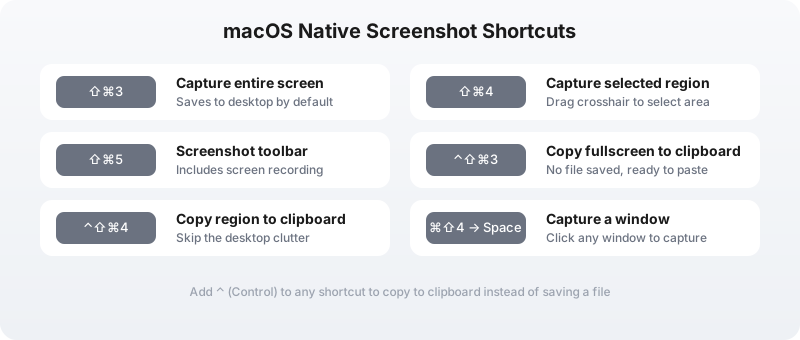
Apple includes a Screenshot utility in every version of macOS. You do not need to install anything to get started. Here are the default shortcuts:
| Shortcut | What It Does |
|---|---|
| ⇧⌘3 | Capture the entire screen and save as a file |
| ⇧⌘4 | Capture a selected region by dragging a crosshair |
| ⇧⌘5 | Open the Screenshot toolbar with recording options |
| ⌃⇧⌘3 | Copy the entire screen to clipboard (no file saved) |
| ⌃⇧⌘4 | Copy a selected region to clipboard (no file saved) |
| ⇧⌘4 → Space | Switch to window capture mode, then click a window |
These shortcuts work instantly and are reliable for basic needs. If you just want to grab what is on your screen and move on, they are good enough.
But there are limits. The built-in tool does not support scrolling capture, so you cannot screenshot an entire webpage in one image. It offers no annotation tools beyond a bare-bones Preview toolbar. And if you want to record your screen with system audio, you need a separate app like QuickTime Player — which lacks audio routing without extra setup.
The Problem with Basic Screenshot Tools
Knowing how to take screenshot on Mac using native shortcuts is table stakes. The real question is what happens after you capture the image.
Here is what a typical workflow looks like with the built-in tool:
- You press ⇧⌘4 and drag to select a region
- The file lands on your desktop with a name like
Screenshot 2026-05-14 at 10.30.00 AM.png - You open Preview, click the markup toolbar, and hunt for the arrow tool
- You draw an arrow, maybe add some text
- You export and attach the file to an email or message
That is five steps, two app switches, and about 30 seconds of friction. If you take 20 screenshots a day, that is 10 minutes lost to context switching. Over a month, it adds up to hours.
The bigger issue is capability. The native tool cannot:
- Capture scrolling content like long web pages or chat histories
- Extract text from images using OCR
- Record your screen with system audio in one click
- Upload screenshots to cloud storage and copy a shareable link
- Annotate inline during capture without opening a separate editor
For casual users, these limitations may not matter. For developers, designers, writers, and anyone who communicates visually at work, they are dealbreakers.
How to Take Better Screenshots with Snapzy
Snapzy is a free, open-source screenshot app for macOS that handles everything the native tool cannot. It is designed for users who want speed, power, and zero friction. And unlike most alternatives, it is genuinely free — no trial periods, no watermarks, no subscription nags.
Here is how how to screenshot changes when you use Snapzy:
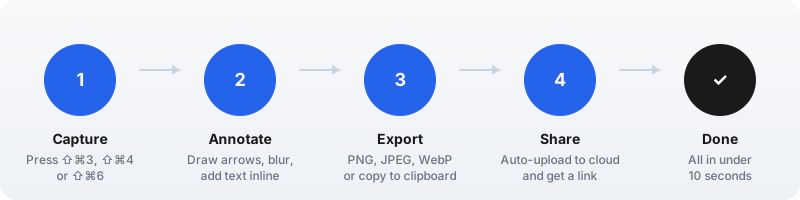
Step 1: Capture in Five Modes
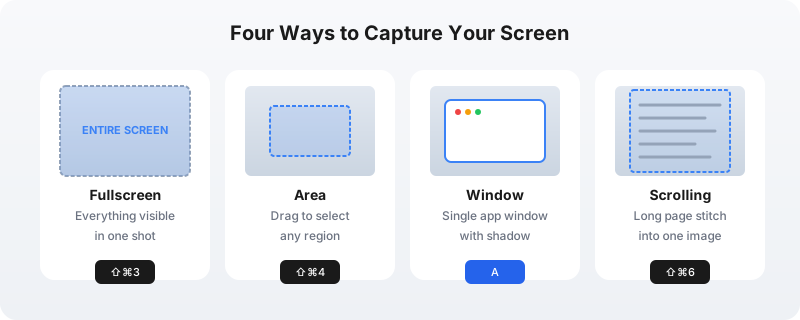
Snapzy gives you four ways to capture, each mapped to an intuitive shortcut:
- Fullscreen (⇧⌘3): Captures everything on your screen instantly
- Area (⇧⌘4): Freezes the screen first, so you can capture hover states, dropdowns, and tooltips that disappear on click
- Window (press A during area selection): Captures a single application window with a clean macOS shadow
- Scrolling (⇧⌘6): Automatically stitches a long page into a single image as you scroll
- Object Cutout (⇧⌘1): Captures a transparent cutout of any object on screen with optional safe auto-crop
The frozen area capture is a subtle but powerful difference. On macOS, many UI elements vanish the moment you press a key or move your mouse. Snapzy freezes the display before you select a region, so you can capture error messages, hover menus, and context menus that would otherwise disappear.
Step 2: Annotate Without Opening an Editor
Snapzy’s Capture Markup feature lets you draw arrows, add text, highlight regions, and blur sensitive data directly inside the capture overlay. No new window opens. No transition animation plays. You stay in your workflow.
This is ideal for quick bug reports or step-by-step instructions where you just need one arrow and a sentence of text. If you need heavier editing — precise crops, background wallpapers, or canvas presets — the full Annotate Editor opens instantly after capture.
Step 3: Export in Any Format
Snapzy exports screenshots as PNG, JPEG, or WebP. You control the quality setting, so you can optimize file size for Slack or preserve pixel-perfect clarity for design handoffs. You can also copy directly to clipboard and skip saving a file entirely.
Step 4: Share Instantly with Cloud Upload
If you connect your own AWS S3 or Cloudflare R2 storage in Snapzy Preferences, you can enable automatic after-capture upload. Snapzy uploads the image, copies a shareable URL to your clipboard, and you paste it anywhere. No bloated email attachments. No clogged Slack channels.
Quick Access and Capture History
After every capture, Snapzy shows a Quick Access floating panel with instant actions: copy to clipboard, edit in the annotate or video editor, drag directly into another app, open the file, or delete it. No more hunting through the Desktop or Downloads folder.
For everything you have captured recently, the Capture History panel and full browser let you browse screenshots, videos, and GIFs with type and time filters, filename search, and one-click reopen in the annotate or video editor. You can also configure retention policies so old captures clean themselves up automatically.
How to Record Your Screen (Not Just Screenshot)
Sometimes a static image is not enough. If you are reporting a complex bug, writing a tutorial, or sharing a product demo, video is faster than a series of screenshots.
Snapzy includes full screen recording at no cost. Press ⇧⌘5 or open the menu bar app to start recording. You can:
- Capture the entire screen or a selected region
- Record system audio, microphone audio, or both
- Enable mouse click highlights and keystroke overlays
- Export as video or GIF
The built-in video editor lets you trim footage, add zoom segments with auto-focus, apply wallpaper backgrounds, and export at custom dimensions. Most free screenshot apps do not include recording at all. Paid apps typically charge $20–$30 for it. Snapzy includes it because the goal is to remove friction, not create pricing tiers.
How to Extract Text from Screenshots
Have you ever taken a screenshot of a terminal output, a code snippet, or an error message and had to retype it manually? Snapzy’s OCR Text Recognition extracts text from any image instantly.
Press ⇧⌘2 to activate OCR capture mode, then drag over any area to extract text instantly. You can also drag an existing image into Snapzy to extract text from it. It preserves indentation and formatting for code blocks, and lets you copy specific lines instead of the entire output. It even works on old screenshots — drag a PNG from months ago into Snapzy and extract the text.
Frequently Asked Questions
How do I screenshot on Mac?
Press ⇧⌘3 for the entire screen, ⇧⌘4 for a selected region, or ⇧⌘5 for the screenshot toolbar. Add ⌃ (Control) to copy to clipboard instead of saving a file. For more advanced capture modes like scrolling shots and inline annotations, use Snapzy.
How to take screenshot on Mac and edit it immediately?
Use Snapzy’s Capture Markup feature. After pressing ⇧⌘4 to open frozen area capture, drag your selection and the annotate toolbar appears directly in the overlay. Draw arrows, add text, or blur data without opening a separate editor.
What is the best way to screenshot on Mac?
For quick captures, the built-in macOS shortcuts work fine. For professional use — scrolling capture, screen recording, OCR, annotations, and cloud sharing — Snapzy is the best free option. It is open source, native to macOS, and includes features that paid alternatives charge for.
How do I take a scrolling screenshot on Mac?
The built-in macOS tool does not support scrolling capture. Use Snapzy and press ⇧⌘6, or select scrolling capture from the menu bar. Snapzy automatically stitches the full page into a single image with a live preview as you scroll.
Can I record my screen on Mac for free?
Yes. Snapzy includes free screen recording with system audio, microphone support, mouse click highlights, and GIF export. Press ⇧⌘5 to start recording. Most other free tools do not include video recording.
How do I change where screenshots are saved on Mac?
Open the Screenshot app with ⇧⌘5, click Options, and choose a save location. In Snapzy, you can set the default save folder in Preferences → General, or enable auto-upload to cloud storage.
Is there a way to screenshot without the shadow on Mac?
Yes. In Terminal, run defaults write com.apple.screencapture disable-shadow -bool true and restart the SystemUIServer. In Snapzy, window capture respects your preference automatically — no Terminal required.
Final Thoughts
Learning how to screenshot on Mac is not about memorizing every shortcut. It is about choosing a workflow that matches how you actually work. If you only need an occasional screen grab, the built-in tool is fine. But if screenshots are part of your daily communication — bug reports, design feedback, documentation, tutorials — you need a tool that keeps up with you.
Snapzy was built for that reality. It is fast enough to stay out of your way, powerful enough to handle every capture scenario, and free enough that you never have to think about cost. If you are ready to stop fighting your screenshot tool and start using it, download Snapzy for free and see the difference.
Support the project
Snapzy is free and open source. If you find it useful, consider sponsoring to help keep development alive and accessible to everyone.