Mac Screenshot: Shortcuts, Tips, and the Best Free Tool in 2026
Mac Screenshot: Shortcuts, Tips, and the Best Free Tool in 2026
The mac screenshot experience has come a long way since the early days of macOS. What started as a hidden keyboard shortcut has evolved into a full-featured utility with screen recording, markup tools, and customizable save locations. Yet despite these improvements, many Mac users still struggle with the basics — and even more remain unaware of what their screenshot tool is truly capable of.
This guide covers everything you need to know about mac screenshot in 2026. We will walk through every native shortcut, hidden setting, and pro tip. Then we will look at what happens when you outgrow the built-in tool, and why Snapzy has become the go-to upgrade for developers, designers, and power users who demand more from their screenshot workflow.
What Is a Mac Screenshot?
A mac screenshot is an image file that captures all or part of your Mac's display. macOS saves these images as PNG files by default, though you can change the format to JPEG, TIFF, PDF, or GIF through Terminal commands or third-party apps.
Screenshots on Mac are unique because they preserve Retina resolution. If you are using a MacBook Pro or Studio Display, your screenshots capture at 2× pixel density. That means a screenshot of a 1440×900 window actually produces a 2880×1800 image — crisp enough for design work, marketing materials, or high-DPI documentation.
Every Mac Screenshot Shortcut You Should Know
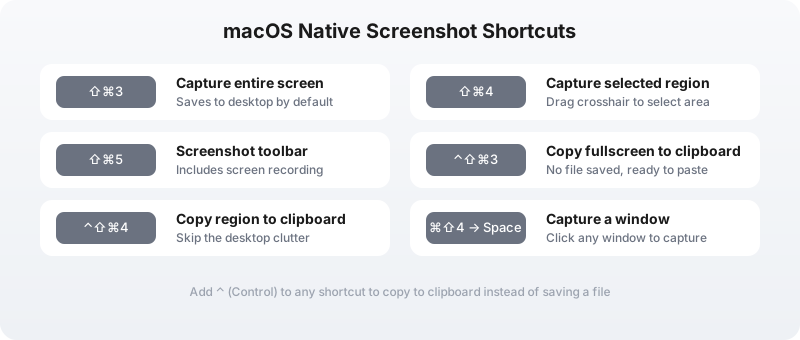
Apple has refined the mac screenshot shortcut system over the years. Here is the complete reference for macOS Ventura and later:
Capture to File (Saves to Desktop or Chosen Location)
| Shortcut | Result |
|---|---|
| ⇧⌘3 | Capture entire screen |
| ⇧⌘4 | Capture selected region |
| ⇧⌘4 → Space | Capture selected window |
| ⇧⌘5 | Open Screenshot toolbar |
Capture to Clipboard (No File Created)
| Shortcut | Result |
|---|---|
| ⌃⇧⌘3 | Copy entire screen to clipboard |
| ⌃⇧⌘4 | Copy selected region to clipboard |
| ⌃⇧⌘4 → Space | Copy selected window to clipboard |
The ⌃ (Control) modifier is the secret to a clean desktop. If you paste screenshots directly into Slack, Notion, or GitHub, there is no reason to clutter your desktop with files. Hold Control while capturing, then paste with ⌘V.
During Region Selection
While dragging a selection with ⇧⌘4, you can hold additional keys to modify the behavior:
- Hold Space before releasing: Move the selected region around
- Hold Shift while dragging: Lock one dimension (horizontal or vertical)
- Hold Option while dragging: Resize from the center instead of a corner
These modifiers take a few minutes to learn but save hours over the course of a year.
Where Do Mac Screenshots Go?
By default, mac screenshot files save to your Desktop with a timestamped filename: Screenshot 2026-05-14 at 10.30.00 AM.png. You can change this location using the Screenshot toolbar:
- Press ⇧⌘5 to open the toolbar
- Click Options
- Under "Save to," choose Desktop, Documents, Clipboard, Mail, Messages, Preview, or a custom location
If you prefer a keyboard-driven workflow, you can also change the default save location from Terminal:
defaults write com.apple.screencapture location ~/Documents/Screenshots
killall SystemUIServer
Create the folder first, or macOS will fall back to the Desktop.
How to Change Mac Screenshot Settings
Beyond the save location, macOS lets you tweak several mac screenshot behaviors through Terminal commands. These are useful if you want a specific workflow without installing a third-party app.
Change the Default Format
defaults write com.apple.screencapture type jpg
killall SystemUIServer
Supported formats: png, jpg, tiff, pdf, gif, bmp.
Remove Window Shadows
defaults write com.apple.screencapture disable-shadow -bool true
killall SystemUIServer
Window screenshots will no longer include the macOS drop shadow. This creates cleaner images for documentation and design handoffs. To re-enable shadows, set the value to false.
Change the Filename Prefix
defaults write com.apple.screencapture name "Snap"
killall SystemUIServer
Your screenshots will now be named Snap 2026-05-14 at 10.30.00 AM.png instead of the default.
Include the Date in the Filename
defaults write com.apple.screencapture include-date -bool false
killall SystemUIServer
This shortens filenames to Snap 10.30.00 AM.png if you also changed the prefix.
How to Edit a Screenshot on Mac
After taking a mac screenshot, you have several editing options:
Preview (Default)
Double-click any screenshot file to open it in Preview. Click the Show Markup Toolbar button to access basic tools: arrows, shapes, text, signatures, and shape detection.
Preview is fine for simple annotations but lacks advanced features like blur, pixelation, numbered step counters, and layer management.
Quick Look
Select a screenshot file and press Space to open Quick Look. Click the markup icon in the top-right corner to access the same basic tools without fully opening Preview.
Photos App
If you save screenshots to the Photos library, you can use the built-in editing tools for cropping, color correction, and filters. This is rarely useful for professional screenshots but handy for personal use.
When the Built-In Tool Is Not Enough
The native mac screenshot utility is competent for casual use. But it hits a ceiling quickly. Here are the most common complaints from power users:
- No scrolling capture. You cannot screenshot an entire webpage, long chat history, or error log in one image. You must stitch multiple captures manually.
- No OCR. Extracting text from a screenshot requires a separate app or manual retyping.
- Limited annotation. Arrows and text boxes are available, but there is no blur tool for sensitive data, no step counters for tutorials, and no preset canvas sizes.
- No cloud sharing. Every screenshot is a local file. To share it, you must attach the file or upload it manually to a host.
- No inline annotate during capture. You always capture first, then open an editor. There is no way to draw an arrow in the capture overlay itself.
- Screen recording is separate. The ⇧⌘5 toolbar includes recording, but exporting GIFs, trimming clips, or adding audio requires QuickTime or another app.
If any of these limitations sound familiar, you have outgrown the built-in tool. The good news is that you do not need to pay for an upgrade.
Snapzy: The Best Mac Screenshot Upgrade
Snapzy is a free, open-source mac screenshot app that fills every gap left by the native tool. It runs on macOS 13 and later, launches from the menu bar, and integrates cleanly with your existing workflow.
What Makes Snapzy Different
- Truly free. No freemium model, no trial period, no premium tier. Every feature is available at zero cost.
- Open source. The code is public, auditable, and community-maintained. No hidden telemetry or data collection.
- Native performance. Snapzy is a native macOS app, not an Electron wrapper. It launches instantly, uses minimal memory, and respects your system.
- Privacy first. Screenshots stay on your device unless you choose to upload them. There is no proprietary cloud locking you in.
Features That Extend Mac Screenshot
Beyond the headline features, Snapzy adds workflow enhancements that power users rely on every day:
- Quick Access: a floating panel after every capture with copy, edit, drag-to-app, open, and delete actions
- Capture History: a floating panel plus full browser for recent screenshots, videos, and GIFs with type/time filters, filename search, and one-click reopen in the editor
- Fully configurable shortcuts: customize every global shortcut, toggle individual shortcuts on or off, and detect system conflicts before they happen
| Feature | macOS Native | Snapzy |
|---|---|---|
| Fullscreen, area, window capture | ✓ | ✓ |
| Scrolling capture | ✗ | ✓ |
| Screen recording with system audio | Partial | ✓ |
| Inline annotate during capture | ✗ | ✓ |
| OCR text extraction | ✗ | ✓ |
| Cloud upload (S3/R2) | ✗ | ✓ |
| Blur, pixelate, step counters | ✗ | ✓ |
| GIF export from video | ✗ | ✓ |
| Object cutout / background removal | ✗ | ✓ |
| Open source | ✗ | ✓ |
| Truly free | ✓ | ✓ |
The Snapzy Shortcut Map
Snapzy uses shortcuts that feel natural to anyone who already knows the native mac screenshot commands:
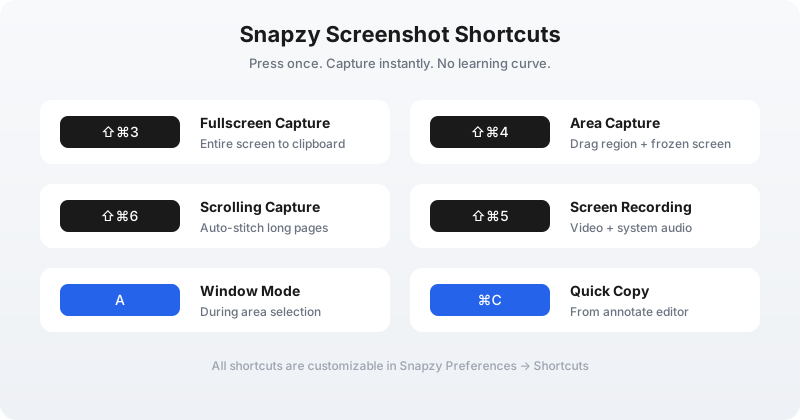
- ⇧⌘3: Fullscreen capture
- ⇧⌘4: Frozen area capture (press A during selection for window mode)
- ⇧⌘6: Scrolling capture
- ⇧⌘5: Screen recording
All shortcuts are customizable in Snapzy Preferences if you prefer different mappings.
Mac Screenshot Tools Compared
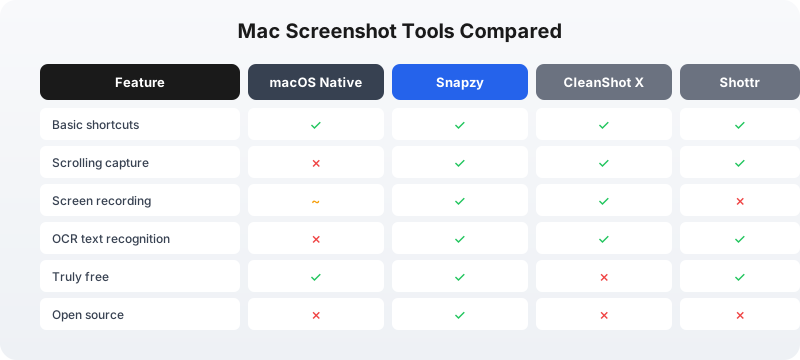
If you are evaluating mac screenshot apps, you have probably seen CleanShot X and Shottr mentioned alongside Snapzy. Here is how they stack up:
CleanShot X
CleanShot X is the most polished paid screenshot app for Mac. It offers scrolling capture, annotations, screen recording, and cloud upload. However, it costs $29 for a single license or requires a subscription for updates and cloud storage. Many features — like GIF recording and background removal — are locked behind that paywall.
Shottr
Shottr is a free screenshot app with excellent annotation tools and OCR. It is lightweight and fast. However, it lacks screen recording entirely, has no cloud upload integration, and offers no scrolling capture. It is a strong choice for pure screenshot annotation, but not a complete workflow solution.
Snapzy
Snapzy matches or exceeds CleanShot X’s feature set while remaining completely free. It includes screen recording, scrolling capture, OCR, annotations, cloud upload, and Capture Markup — all without a price tag. The trade-off is that Snapzy is community-funded rather than commercially backed, which means development pace depends on sponsorship.
For users who want the most powerful mac screenshot workflow without spending money, Snapzy is the clear choice.
Frequently Asked Questions
What is the mac screenshot shortcut?
The most common mac screenshot shortcuts are ⇧⌘3 for the entire screen, ⇧⌘4 for a selected region, and ⇧⌘5 for the screenshot toolbar. Add ⌃ (Control) to copy to clipboard instead of saving a file.
How do I change where mac screenshots are saved?
Press ⇧⌘5, click Options, and select a new save location. Alternatively, use Terminal: defaults write com.apple.screencapture location ~/Path/To/Folder followed by killall SystemUIServer.
Can I take a scrolling screenshot on Mac?
The native mac screenshot tool does not support scrolling capture. Use Snapzy and press ⇧⌘6 to capture an entire webpage, document, or chat history in one stitched image.
How do I screenshot a single window on Mac?
Press ⇧⌘4, then tap Space. Your cursor becomes a camera icon. Click the window you want to capture. In Snapzy, you can also press A during area selection to toggle window mode.
What is the best free mac screenshot app?
Snapzy is the best free mac screenshot app in 2026. It includes scrolling capture, screen recording, OCR, annotations, cloud upload, and inline markup — all at no cost and with open-source transparency.
How do I remove the shadow from window screenshots?
Run defaults write com.apple.screencapture disable-shadow -bool true in Terminal, then killall SystemUIServer. In Snapzy, window capture respects this setting automatically.
Can I record my screen on Mac with audio?
Yes. Snapzy includes screen recording with both system audio and microphone input. Press ⇧⌘5 to start. You can also enable mouse click highlights and keystroke overlays for tutorials.
Final Thoughts
Mastering the mac screenshot workflow is one of the highest-impact productivity upgrades you can make on a Mac. The native tools are a solid foundation. But if you take screenshots daily — for work, for creativity, or for communication — you deserve a tool that matches your pace.
Snapzy was built to be that tool. It respects the shortcuts you already know, adds the features you actually need, and stays free forever because it is funded by the community, not a subscription model. If you are ready to upgrade your mac screenshot game, download Snapzy for free and experience the difference.
Support the project
Snapzy is free and open source. If you find it useful, consider sponsoring to help keep development alive and accessible to everyone.