Capture Markup: Annotate While You Shoot, No Waiting Around

Capture Markup: Annotate While You Shoot
Ever taken a screenshot, waited for the annotate editor to open, hunted for the right tool, and then finally started drawing the arrow pointing at the bug?
That workflow is so familiar most of us accept it as "just how it works." But it doesn't have to be.
With Capture Markup — new in Snapzy v1.14 — you annotate directly inside the capture overlay. No new window. No interruption. Shoot, draw, done.
The Problem That Keeps Repeating
Think about your traditional screenshot workflow:
- You hit a shortcut to capture
- A thumbnail pops up in the corner
- You click the thumbnail (or open the app)
- The annotate editor opens in a new window
- You find the tool, pick a color, draw the arrow
- Save or copy
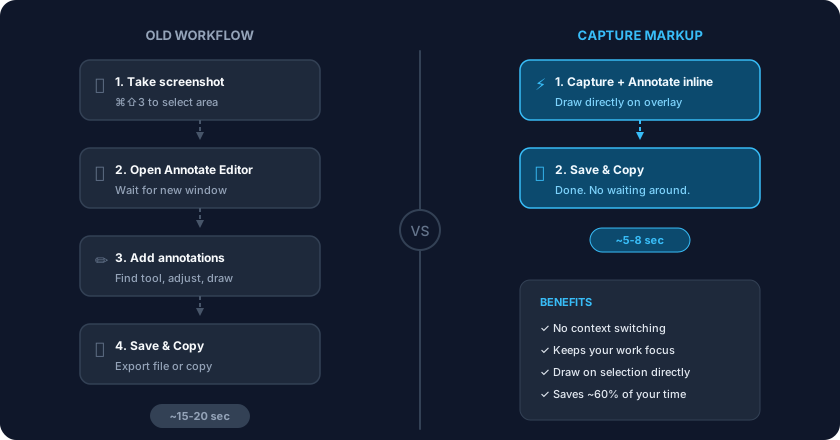
Each cycle takes about 15-20 seconds. Sounds small, but if you take 30 screenshots a day, that's nearly 10 minutes spent just waiting for windows to open.
More importantly: every context switch forces your brain to reload its focus state. You're deep in a debug flow, you spot a bug, capture it — then get pulled into a different window. By the time you get back, the bug scrolled away or you forgot what you were doing next.
What Is Capture Markup?
Capture Markup (also called Inline Area Annotate) lets you add annotations directly inside the overlay while you're selecting a screen capture region.
Instead of:
Capture → Open Editor → Annotate → Save
It becomes:
Capture + Annotate inline → Save
Inside the capture overlay, after you drag your selection, a toolbar appears right above the selected area. You can:
- Draw arrows pointing at the detail that matters
- Add text for a quick explanation
- Draw rectangles or circles around UI elements
- Highlight a code block or button
- Add numbered steps for tutorials
- Use the pen for freehand marks
- Undo / Redo if you mess up
All of it happens on the screen you're already looking at. No new window. No transition animation. No lost focus.
What It Actually Looks Like
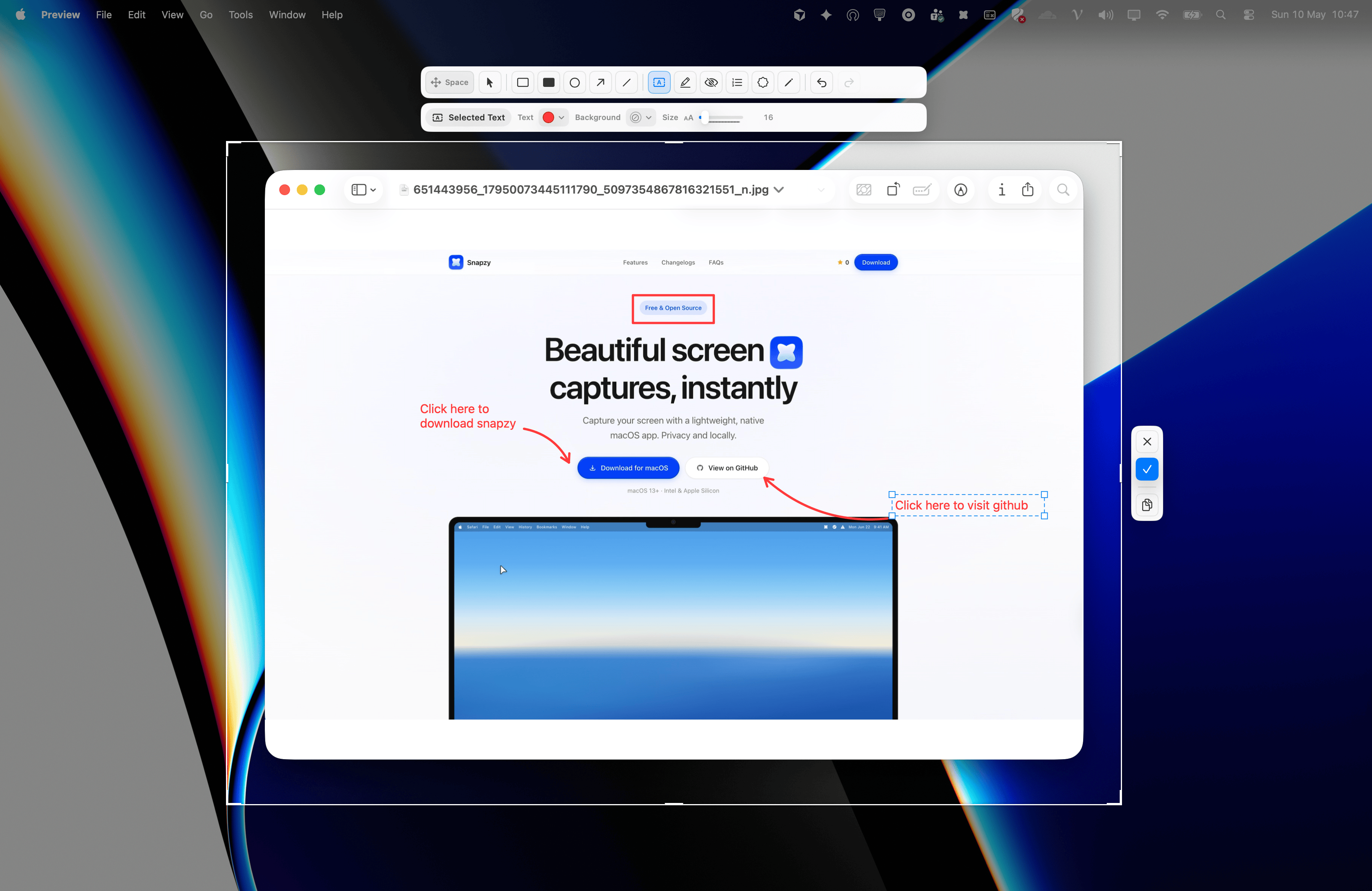
Here's the real Capture Markup interface in action while capturing a region on a webpage:

Notice:
- The tool toolbar sits right above the selection, compact and unobtrusive
- The properties bar shows options for the active tool — color, size, background
- Arrows and text annotations are drawn directly on the screenshot in real time
- When you're done, hit Enter or click the check button — the image saves with every annotation baked in
How It Compares to Other Apps
| Feature | Snapzy (Capture Markup) | CleanShot X | Shottr | macOS Native |
|---|---|---|---|---|
| Annotate inside capture overlay | Yes | No | No | No |
| Time from capture to done | ~5 sec | ~15 sec | ~12 sec | ~20 sec |
| Workflow steps | 2 steps | 4 steps | 4 steps | 5+ steps |
| Keeps your work context | Yes | No | No | No |
| Undo / Redo in overlay | Yes | No | No | No |
| Full annotation toolkit in overlay | Yes | Only basic preview | No | No |
CleanShot X
CleanShot X has a quick-access overlay after capture, but it's mainly for previewing, copying, or picking an action (save, annotate, upload). To actually annotate, you still open a separate annotate editor. Their overlay looks great, but it's a "post-capture control panel" — not a "draw-while-you-capture canvas."
Shottr
Shottr has solid annotation tools, but they're entirely post-capture. You shoot first, then the image opens in an editor window. No inline overlay during region selection at all.
macOS Native
The built-in macOS screenshot tool has basic annotation through the Preview toolbar (if you open the saved image), but the flow is clunky: capture → find the file on your desktop → open Preview → pick a tool. No overlay, no inline anything.
When to Use Capture Markup vs. the Annotate Editor
Capture Markup doesn't replace the full Annotate Editor — they complement each other.
Use Capture Markup when:
- You need to fire off a quick screenshot with a couple arrows or a short note
- You're debugging and need to mark a bug immediately
- You're writing internal docs with simple step-by-step instructions
- You want to stay in your work flow without breaking focus
Use the Annotate Editor when:
- You need heavy editing: precise crops, background swaps, watermarks
- You're exporting at specific canvas sizes for social media
- You want to apply saved presets
- You're editing a screenshot you took earlier
Snapzy gives you both. Capture Markup for speed. Annotate Editor for depth.
How to Enable It
Capture Markup is built into Area Capture (⌘⇧3) starting with Snapzy v1.14.0.
To use it:
- Press ⌘⇧3 to open frozen area capture
- Drag to select the region you want
- The annotate toolbar automatically appears above your selection
- Pick a tool and start drawing directly on the overlay
- Press Enter or click the check button to save
- The image copies to clipboard (or saves to file, depending on your settings)
If you don't want to use Capture Markup for a specific capture, just ignore the toolbar — press Enter right after selecting the region and the screenshot saves normally.
Bottom Line
Capture Markup changes how you think about screenshots. It's no longer "capture then fix" — it's "capture and fix in the same breath."
With other apps, there's always a gap between shooting and annotating. With Snapzy, that gap disappears.
If you haven't updated to v1.14 yet, open Snapzy and check for updates. This feature is free, like everything else in Snapzy.
Download Snapzy for free or explore the rest of the features.
Support the project
Snapzy is free and open source. If you find it useful, consider sponsoring to help keep development alive and accessible to everyone.